

How to track your spending without giving up
Here is how to track your spending and actually keep going. You need three things: 30 days in a row, six to eight broad categories, and as little typing as possible. Let your bank’s data do most of the work, and cover the rest by voice or by snapping the receipt. Keep every source in one place, every card plus cash, or you only ever see part of what you spend.
The first month isn’t about cutting back. You don’t ban anything, you just watch where the money goes. You draw conclusions twice: on day 7 you check that nothing is slipping through, and on day 30 you look at the numbers.
Why people quit tracking
It isn’t willpower. It’s friction. Every purchase means pulling out your phone, opening a spreadsheet, typing the amount and picking a category. Coffee $5, bus fare $3, lunch $14: that’s five to ten entries a day. Miss two evenings and nobody wants to rebuild them from memory. The spreadsheet freezes around the 12th.
The second reason is categories that are too fine. When “Coffee”, “Snacks” and “Work lunches” are separate, every entry becomes a small decision.
The third is tracking only one card. Cash and the second card drop out, the totals don’t match how the month felt, and you decide tracking “doesn’t work”.
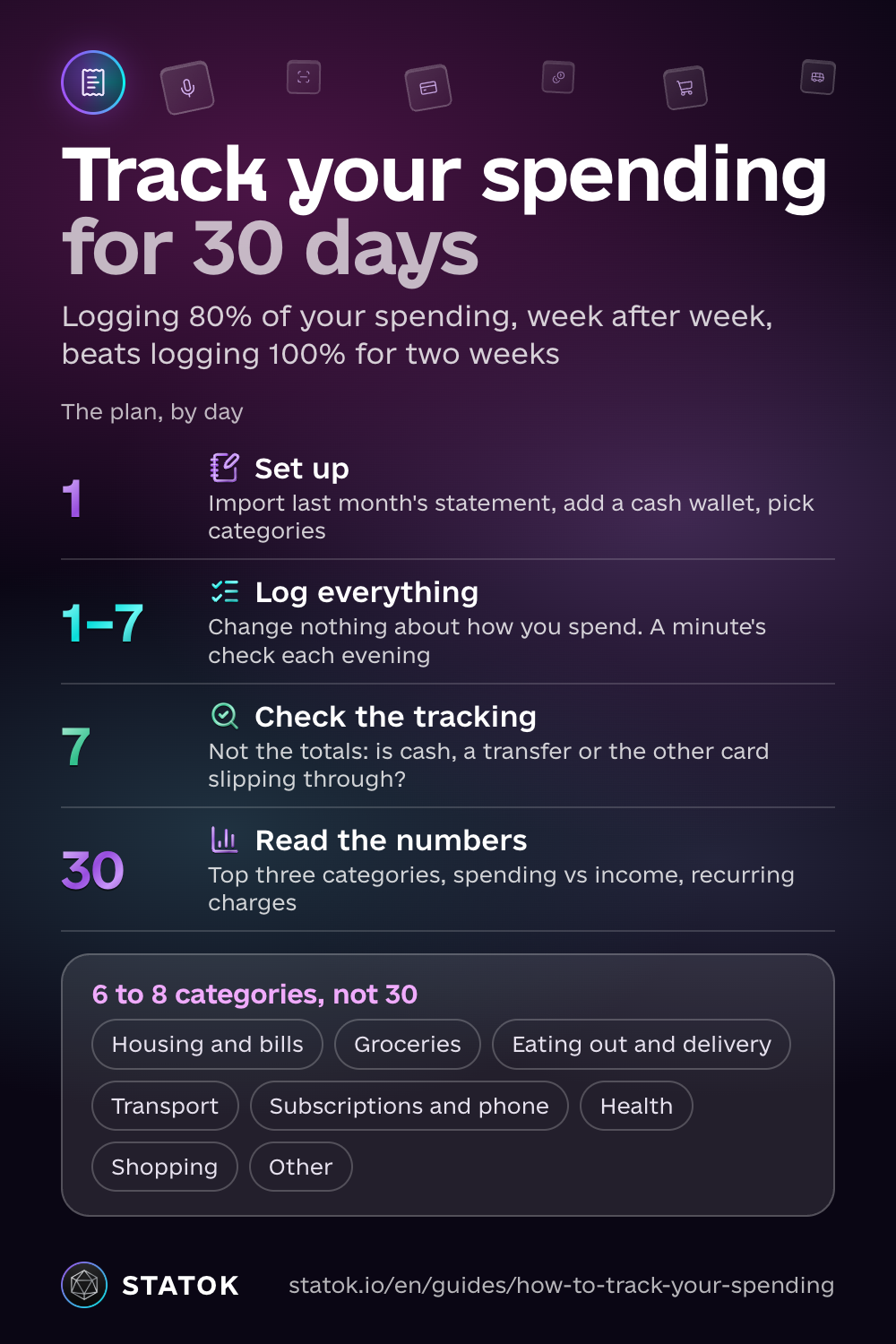
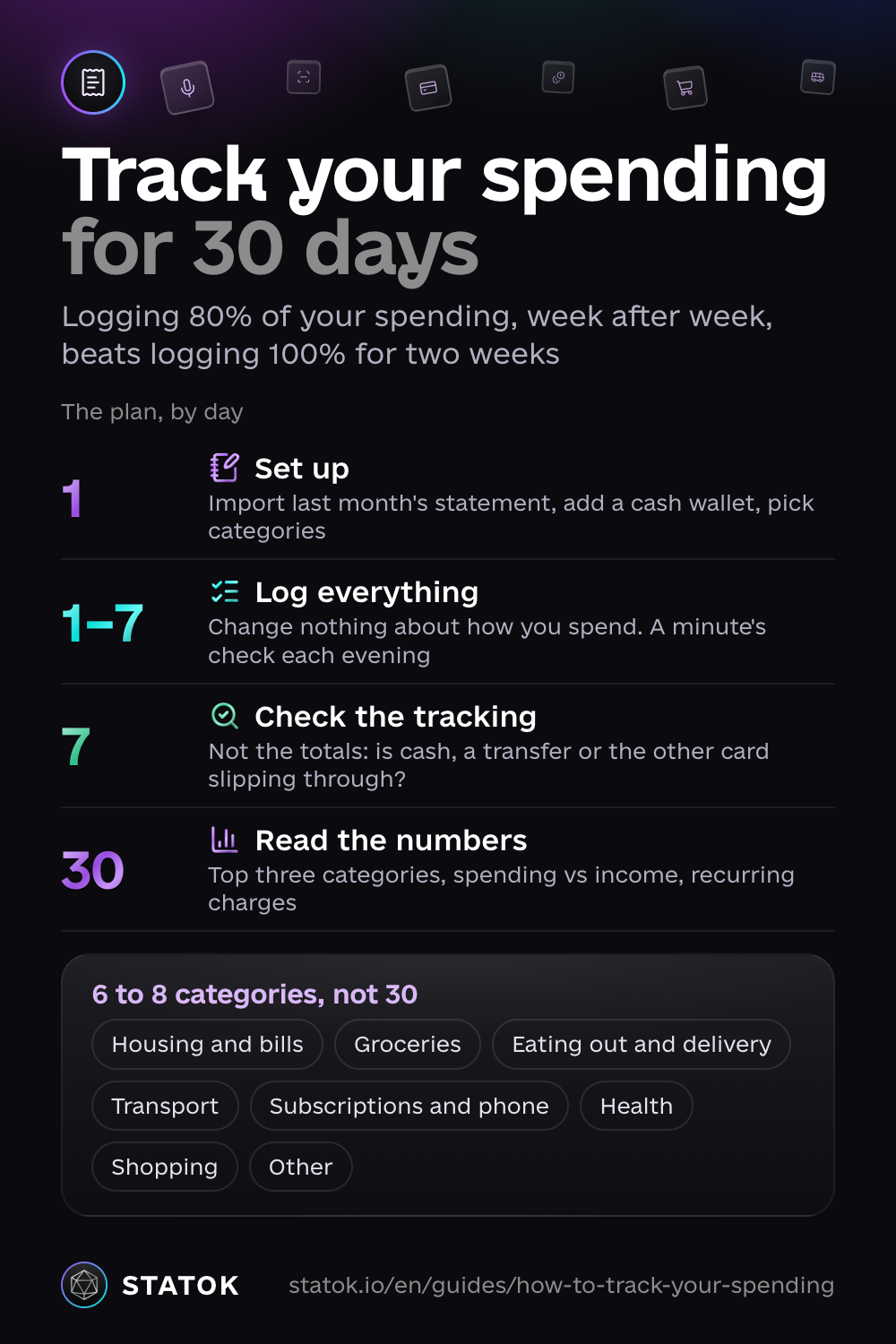
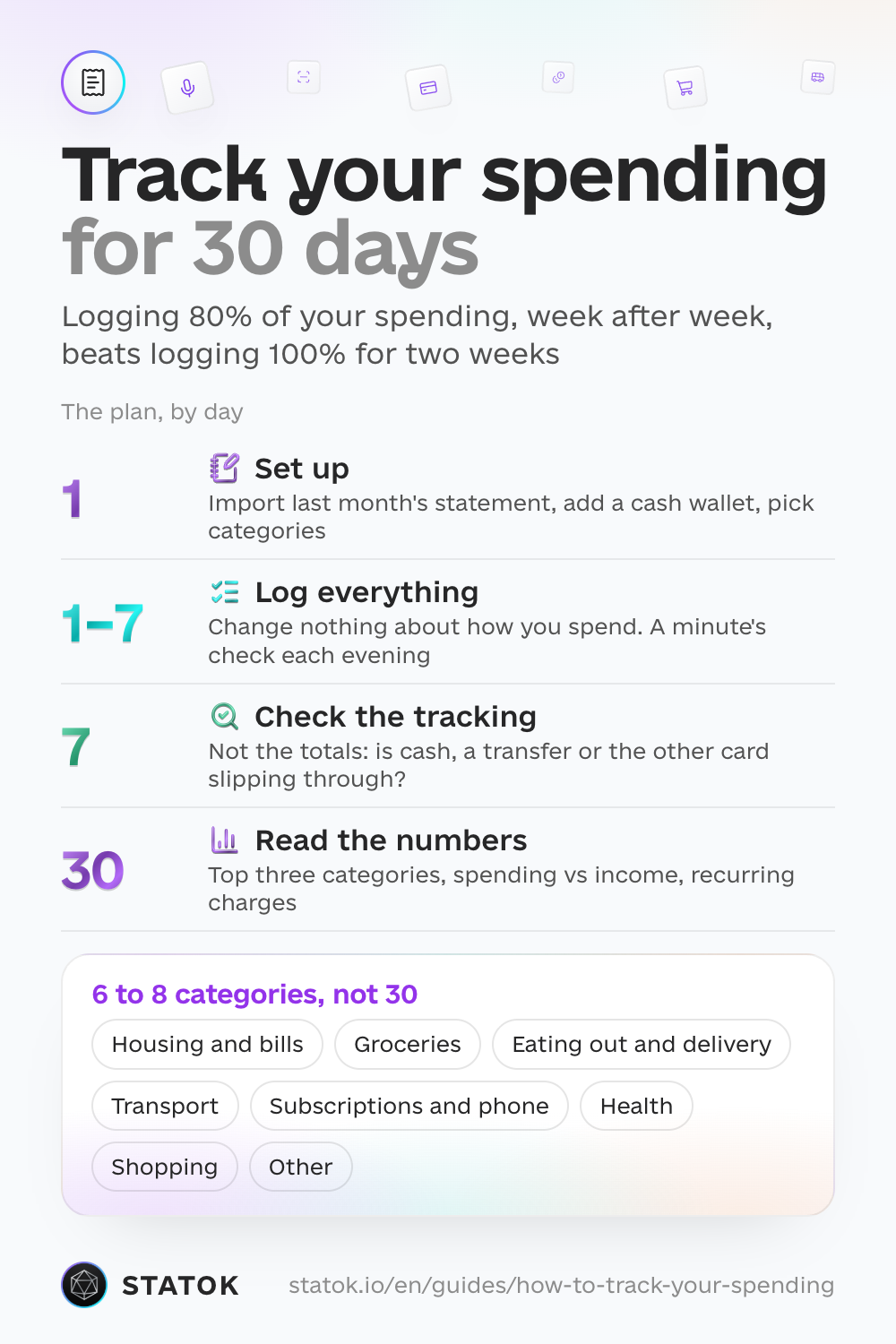
So the rule that matters most: logging 80% of your spending, week after week, beats logging 100% for two weeks.
Step 1: Use 6 to 8 categories, not 30
Start broad:
- Housing and bills
- Groceries
- Eating out and delivery
- Transport: rideshare, transit, gas
- Subscriptions and phone
- Health
- Shopping: clothes, electronics, home
- Other
Split a category later, once you see it growing. If “Other” ends the month as a big slice, there’s a missing category hiding in it.
Step 2: Pick how you log, by effort
Roughly from least effort to most. Mix them: your bank’s data covers the cards, voice and receipts cover the rest.
Let your bank’s data do the typing
The least typing is when the transactions already exist. Most banks let you download your transactions as a CSV, Excel or PDF file. Once a week, download the file and drop it into your tracker. That’s a minute of work instead of forty manual entries.
Apple Pay and bank alerts, automatically
On your iPhone, the Shortcuts app can pass Apple Pay taps, bank notifications (iOS 27) or bank SMS straight to your tracker. You set it up once. Know the limits: it covers in-store taps with the cards you pick. Online payments, Apple Watch payments, refunds and declined payments are not passed to automations. iOS can also occasionally skip one, so unclear items go to review.
By voice
Walk out of the café, say “coffee 5 and Uber 18”, and get two entries. Voice is the fastest way to log cash and anything your bank never sees, like the cash you pay a friend back.
A photo of the receipt
Nobody types out a 20-line grocery receipt. A tracker with receipt scanning reads the lines for you, so you can see that $28 of your $96 grocery run went on snacks.
Cash
Make a separate “Cash” wallet. The ideal is to log each cash spend by voice. The realistic version is to check the balance every few days: you took out $200, there’s $45 left, so $155 is gone. Log what you remember by category and put the rest in “Other”. That beats losing the amount entirely.
Why your bank’s spending tab isn’t enough
Most banking apps now sort your card spending into categories, and some can link accounts from other banks too. That’s useful as far as it goes.
But even the best banking app never sees your cash. And if it offers budgets, they only count what goes through that bank, so your cash is missing there too. If a fifth of your spending is cash, the bank’s chart honestly shows you the other four fifths. That’s why everything has to land in one place.
How to track your spending: a 30-day plan
Day 1
Import last month’s statement, set up a cash wallet, pick your categories. About ten minutes.
Days 1 to 7
Log everything and change nothing about how you spend. Spend a minute each evening checking that it all came in and nothing is uncategorized.
Day 7
Look at the tracking, not the totals. What’s slipping through: cash, transfers, the other card? Has “Other” grown? Fix it now while the habit is forming. A week is too short to judge the money itself.
Day 30
Now the numbers mean something:
- Your three biggest categories. One of them usually surprises you.
- Spending against income: what’s left, and how much went on things you can’t remember.
- Recurring charges. The first month of records almost always turns up subscriptions you forgot about.
- Your real split. With 30 days of data you can compare it with the 50/30/20 rule. It’s a reference point, not a grade: on a tight income, needs often take more than half.
Set limits only after that, and start with the flexible categories: eating out, shopping, subscriptions. Rent, bills, groceries, getting to work and minimum debt payments come first and stay paid.
If point 2 shows you spend more than you earn, or you’re already behind on a bill, don’t wait for day 30 to act. In the UK, MoneyHelper can point you to free, confidential debt advice near you. In the US, the CFPB’s guide on budgeting when bills and income don’t line up is a good place to start. With a month of records, your daily number for how much you can spend today becomes accurate too.
How STATOK does it
STATOK pulls every source into one place and sorts spending into categories automatically. You can set the main number on Home to “Spent this month”.
- Import from files. Excel (XLSX, XLS), CSV or PDF statements. STATOK recognizes the columns and you check them before importing. You can also bring over your own spending spreadsheet so you don’t start from zero.
- Automatic tracking through the Shortcuts app: “Apple Pay taps”, “Bank notifications” (iOS 27), “Bank SMS”. Anything unclear lands in review instead of your history.
- Talk. Several purchases in one sentence. Before saving, you see each one on a card and can drop any or change its category. If a purchase already came in from an import or Shortcuts, STATOK flags a possible duplicate.
- Scan. Snap a receipt and the items are read for you.
- Write. For cash and any account you created yourself.
The Free plan has a monthly limit on voice, receipt scans and imports. Pro removes those limits.
Read next
- How to find and cancel subscriptions you forgot about
- How to use the 50/30/20 rule with your real spending
- Spendee vs Monefy vs STATOK: which expense tracker fits?
- How to calculate your net worth: once you know where your money goes, the next step is knowing what you’re worth.
Save this guide
Download as an image Download as an image Download as an image